Well, I have a Raspberry Pi 3 that has survived like a Viking through my experiments; I had several services running in containers there. Fedora 42 came out and I thought, time to update and test it, but while burning the image with balenaEtcher to the SD card, I remembered that balenaOS exists, a lightweight operating system made to run containers Docker-style (Docker optimized for IoT), so I asked myself, why not?…
[Confessions: I get bothered by file clutter, that’s why I hate Node.js and all its garbage a little bit, and I’m starting to look at Golang with loving eyes >p; I’m supposed to be practicing algorithms with Python and SQL, but no, here we are, trying to create a remote workspace using Coder, BalenaOS, and Docker…]
Anyway, it’s simple: if you want to replicate this, first create an account at balena.io, create your organization, next next shalala… click add device and select your device, the OS version, developer mode, if you’ll use it on WIFI then enter your SSID and password so it connects automatically in headless mode, and download the image, insert your microSD, format it and then write the image with your favorite program, although since we’re here use balenaEtcher.
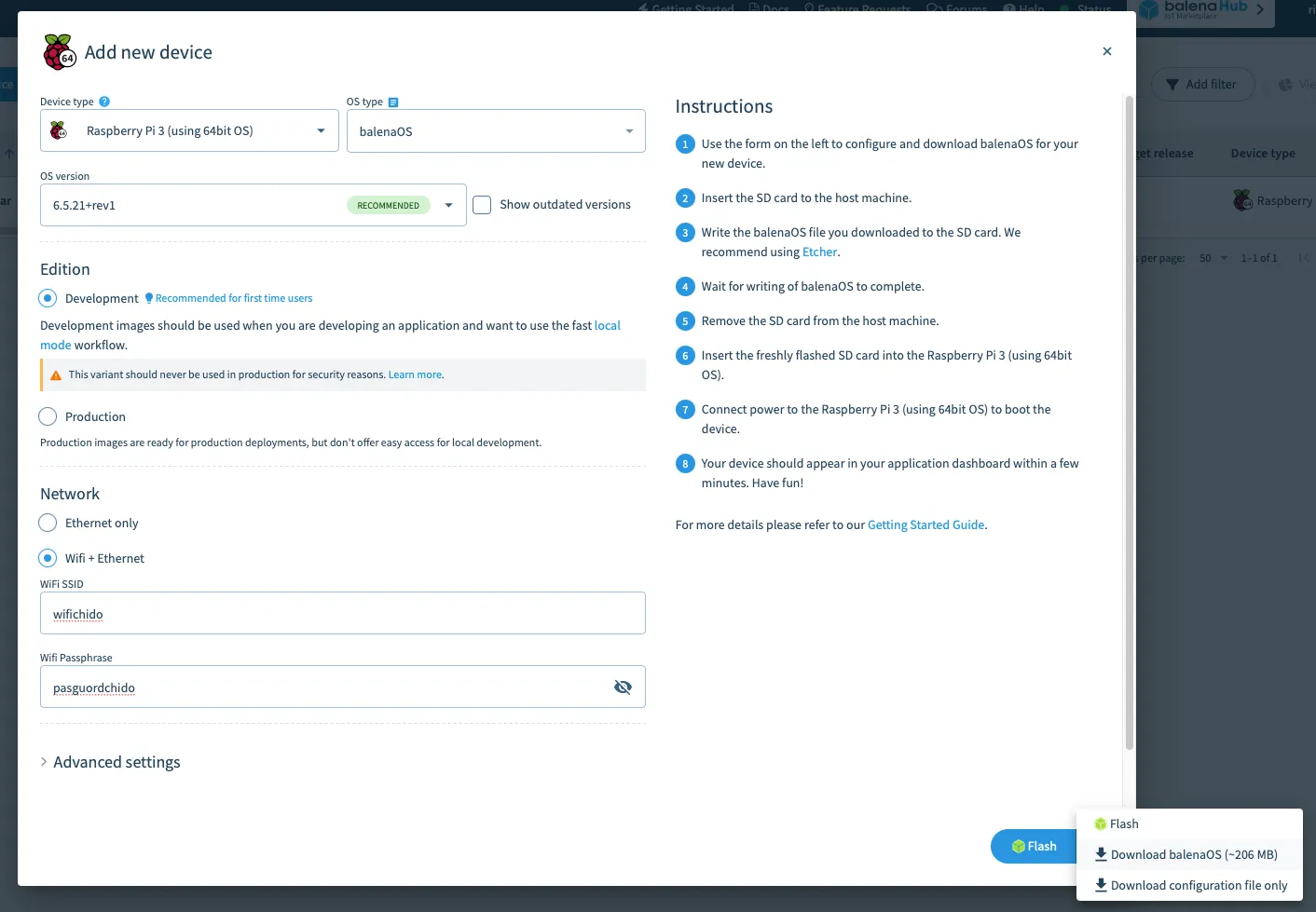
Once your device is powered on and connected to wifi, you need to download the balena CLI and install it, then log in with:
balena login # The browser opens and you enter your credentials and that's it.Then to detect your device use:
balena device list # This will give you your device information just to know.In the previous command, you’ll get the UUID, for example ft4hru3o or something like that, with that you’ll do many things, for example activate local mode which is important for pushing containers:
balena device local-mode fb5e2ad --enable # Activate local mode, as it says lolIt’s also important to know your device’s IP. If mDNS isn’t working or gives you trouble (if ping ft4hru3o.local doesn’t work or something), you can search for it with netstat -a or from your router or whatever, a thousand ways. Let’s imagine the local IP of my device is 192.168.1.69.
We execute:
git push https://github.com/rigelcarbajal/balenacoder.git && cd balenacoderand once inside the directory we do:
balena push 192.168.1.69 # To our raspberry or wherever you installed this.I’ll leave you the official Coder installer page but I’ll tell you that docker-compose is NOT compatible with balenaOS, that’s why I’m uploading the above instructions that have worked well for me.
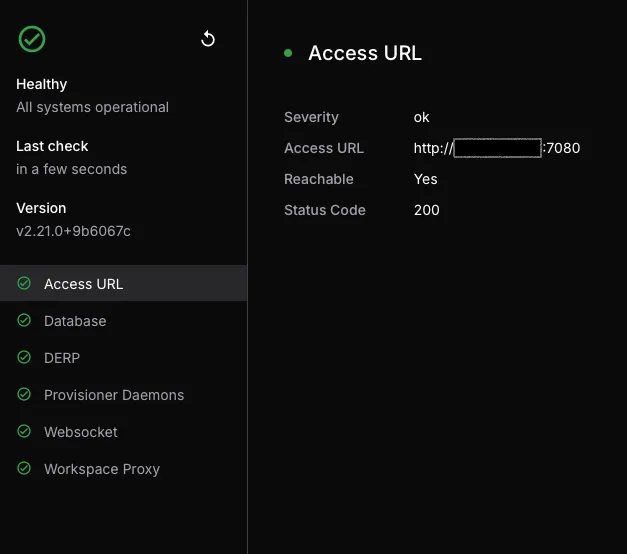
Access using the IP or hostname of your device, in my case it would be 192.168.1.69:7080, create your local account with email and password and you’re done, you can start playing.
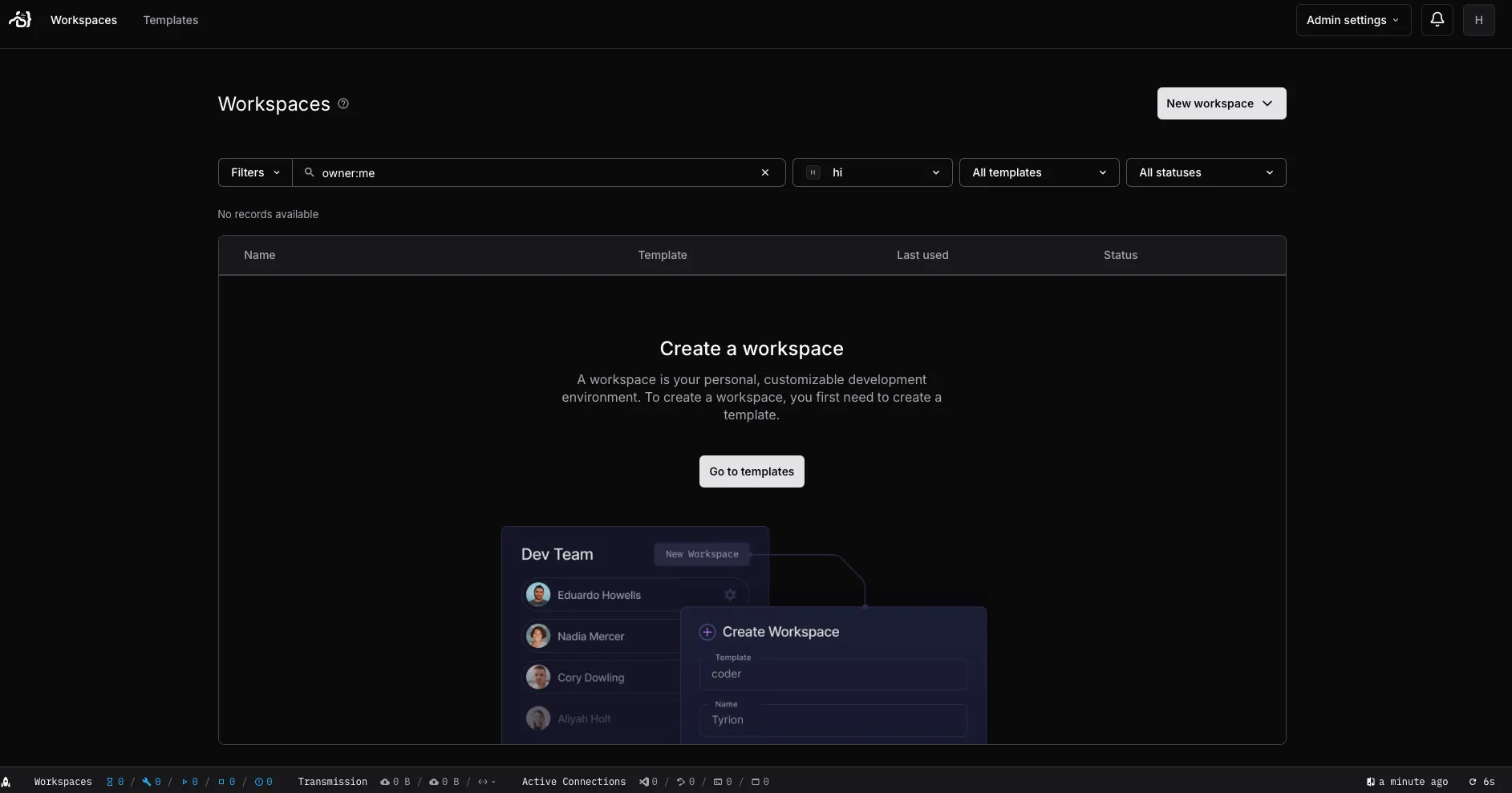
You can use an nginx container to make a reverse proxy to port 80 and expose it from the balena.io platform so you can access your Coder workspace from anywhere. According to what I read, you can only use port 80 with balena, that’s why use nginx.
— Sources:
https://coder.com https://github.com/rigelcarbajal/balenacoder.git